.png?width=500&height=97&name=Firehouse247-Horizontal%20Logo@2x%20(2).png)
Overview
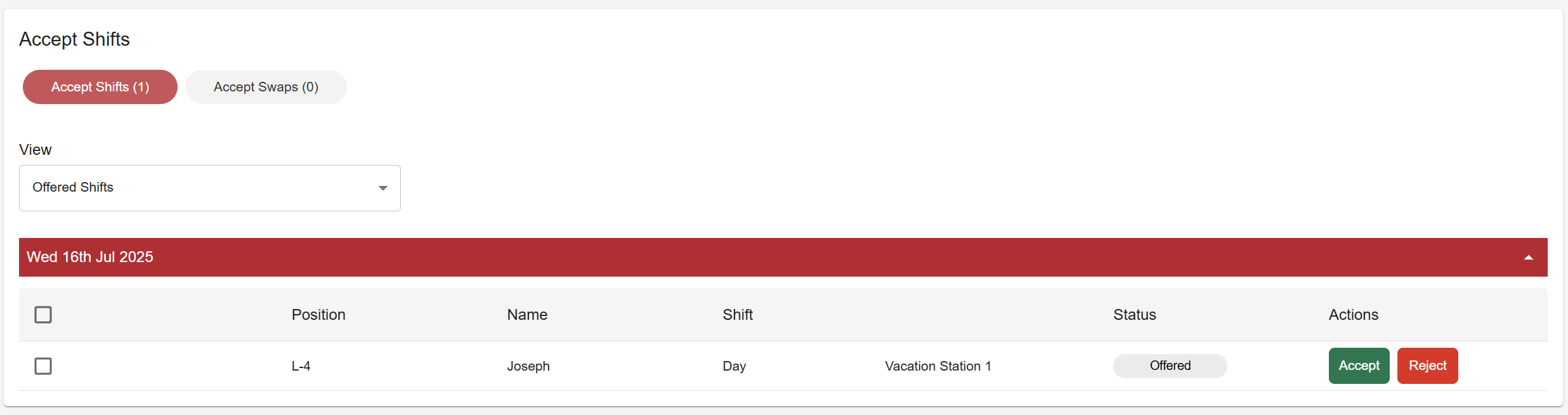
When you're offered a shift via text, email, or push notification - you'll be directed to the Accept Shifts page. From here, you can review, accept, or decline any available or directly offered shifts. This page is your go-to spot for managing your upcoming work opportunities.
Prerequisites
-
You must be logged into the Firehouse247 system (desktop or mobile)
-
Shifts must be offered to you directly, or be available on the Open Shifts list
-
Ensure notifications are enabled for text or app alerts
Step-by-Step Instructions
1. Log in to Firehouse247
-
Open the Firehouse247 app or website
-
Navigate to the Accept Shifts page
2. Review Offered Shifts
-
You’ll see a list of shifts you’ve been individually offered
-
Select the checkbox next to the shift(s) you want to respond to
-
Click Accept to claim the shift, or Decline to pass
-
A confirmation message will appear for your response
3. Respond to Open Shifts (if your department has pre-accept enabled)
-
If you see Open Shifts, check for any with a checkbox
-
These are open for you to submit your pre-accept
-
Select and click pre-accept to submit your request
4. View All Shift Opportunities
-
Switch to All Shifts to see a combined view of all offered and open shifts
-
This table offers a full overview to help you manage your availability
Receiving Notifications
You may be notified of available shifts by:
-
Text message
-
Push notification (from the mobile app)
-
Email alert
These alerts will often say: “Log in to accept” — which brings you directly to this page.
Tips & Best Practices
-
Respond quickly to offered shifts—many are filled on a first-come, first-served basis
-
If you’re unavailable, declining helps speed up the fill process
-
Use the All Shifts view to avoid missing any offers