.png?width=500&height=97&name=Firehouse247-Horizontal%20Logo@2x%20(2).png)
Overview
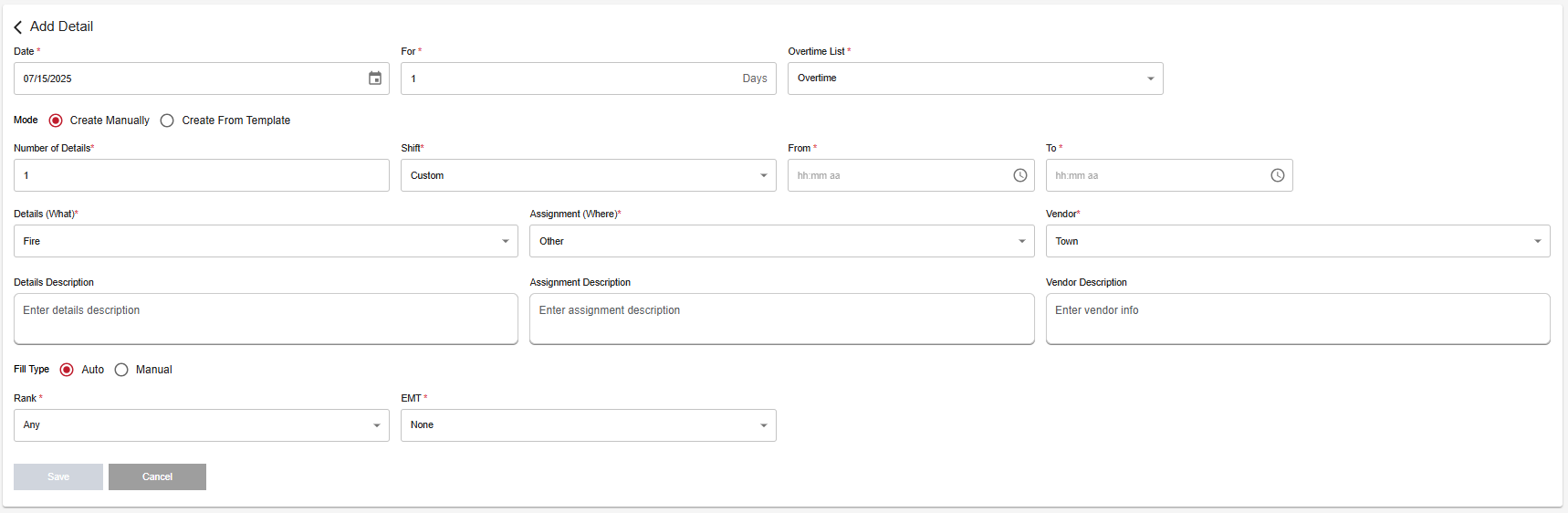
The Detail function allows you to create open shifts (details) for special assignments, events, or external work. These details can then be filled either manually or through the Fill Shifts page, depending on how they're configured. This is ideal for vendor work, extra-duty assignments, and large-scale event staffing.
Prerequisites
-
Admin or Scheduler access
-
Preconfigured vendors, detail templates, and pay codes (if applicable)
-
Understanding of which Overtime (OT) list and shift group the detail applies to
Step-by-Step Instructions
1. Navigate to the Add Detail Page
-
Go to Details > Add New Detail
2. Fill Out the Detail Form
| Field | Description |
|---|---|
| Date | Select the date the detail takes place and set duration (multi-day if needed) |
| For | How many days the detail will populate for |
| Overtime List | Select which OT list will be used for filling |
| Mode | Leave as Manual to fill out the form from scratch. Choose Create From Detail to use a saved template |
| Number of Details | Enter how many positions are needed (e.g., 4 = 4 members needed) |
| Shift | Choose the shift type or custom time the detail will cover |
| Detail (What) | Choose the type of detail (e.g., Fire Watch, Marine Patrol), and write a description (this becomes the shift message) |
| Assignment (Where) | Specify the location of the detail and add additional notes if needed |
| Vendor | Choose the vendor from the department’s preloaded list and enter any specific info |
| Fill Type |
-
Auto: Fill through the Fill Shifts system (requires time interval and rank/EMT settings)
-
Manual: Choose the specific member(s) manually |
| Rank | Select the rank requirement for this detail |
| EMT | Set any EMT-level requirements for assignment |
3. Save the Detail
-
Once saved, the detail will appear in the Details Table
-
If Auto fill was selected, it will appear on the Fill Shifts page for coverage
-
If Manual, the member assigned will already be listed and notified on the daily schedule at the base of the page in the Detail table.
Example Use Case
You’re staffing a 3-day Fire Watch detail with 2 personnel per day.
-
Set the date range
-
Number of Details = 2
-
Select Fire Watch as the type
-
Set Fill Type to Auto
-
It will now appear on Fill Shifts for assignment
Tips & Best Practices
-
Use templates for commonly repeated details to save time (please speak with your account manager to have this set up)
-
Double-check shift times and OT list before saving - these drive how the detail is filled
-
Use descriptive names and vendor notes for easy reporting later