.png?width=500&height=97&name=Firehouse247-Horizontal%20Logo@2x%20(2).png)
Overview
In volunteer and combination departments, members are manually assigned to on-call Position Assignments created on the daily schedule. These assignments are based on each department’s custom shift setup, but the process to assign available members is consistent across all configurations.
Prerequisites
-
Must have Admin or Shift Captain permissions
-
Volunteer members must have submitted availability using the Volunteer Sign-Up Form
-
Position types and certifications must be preconfigured (if required by the department)
How to Assign a Volunteer Member to a Shift
1. Open the Schedule Page
-
Go to the Schedule tab under Work Management
-
Navigate to the day you want to assign on-call positions
2. Locate the Open Position
-
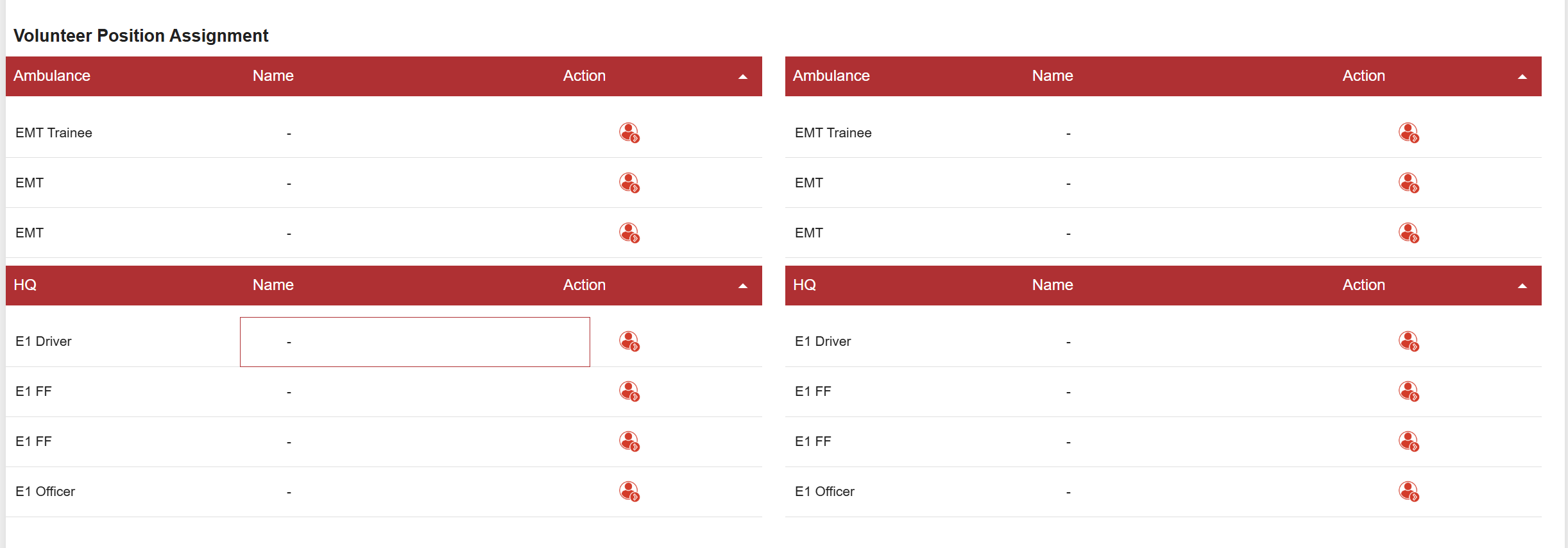
Find the row with the open on-call position
-
Click the Person icon ? next to the shift row
3. Use the Context Window
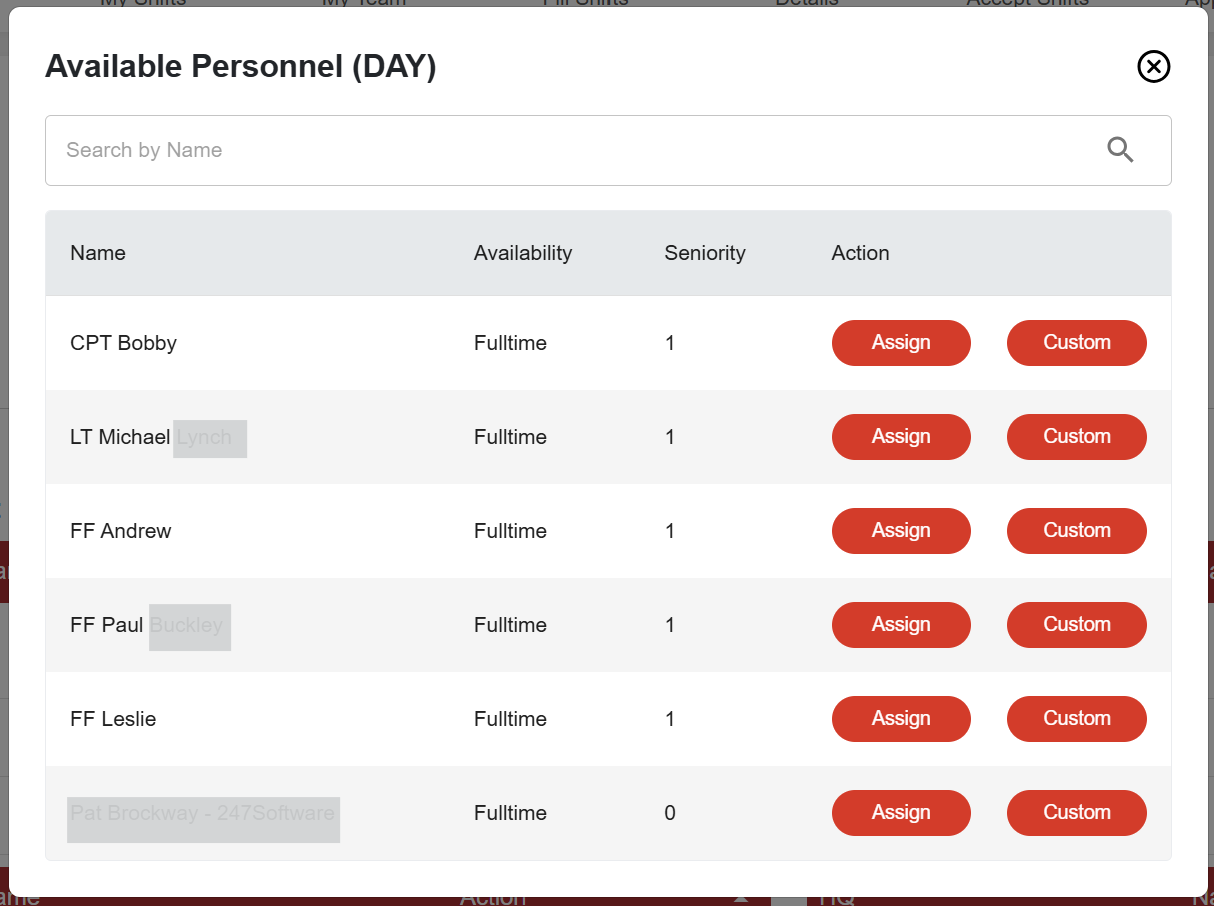
A popup will appear showing:
-
A list of members who have submitted availability
-
Only members qualified for the position (e.g., EMT-certified) will appear, if the position is certification-restricted
4. Click Assign
-
Click the Assign button next to the member’s name
-
Click Custom to enter a custom time frame the member will be assigned to the shift
-
The member will immediately receive a notification confirming their assignment
? If the position requires certification, only certified members will display as options in the context window.
How to Unassign a Member
If you need to remove a member from an assigned on-call position:
-
Click the Return arrow icon ⤺ next to the member’s name in the shift row
-
The position will return to an open state and can be reassigned as needed
Tips & Best Practices
-
Review volunteer availability daily to stay ahead on staffing
-
Use certification filtering to ensure compliance with role-specific requirements
-
If no one appears in the context window, double-check member availability or certificate restrictions
-
Use the Volunteer Sign-Up Form regularly to encourage participation and keep coverage options flexible