.png?width=500&height=97&name=Firehouse247-Horizontal%20Logo@2x%20(2).png)
Overview
There are times when you’ll want to manually assign a specific member to a shift rather than using the automated shift-filling process. This article walks you through how to manually assign someone to cover a PTO slot on the schedule.
Prerequisites
-
Scheduler or Admin access
-
The member must already be marked out (e.g., PTO, Sick, Military Leave)
-
Replacement member must be eligible to work the shift
Step-by-Step Instructions
1. Open the Schedule Page
-
Navigate to the Schedule tab
-
Locate the member who is marked with PTO (or another time off)
2. Begin Editing the PTO
-
Click on the member’s 3 dot's icon to Edit
-
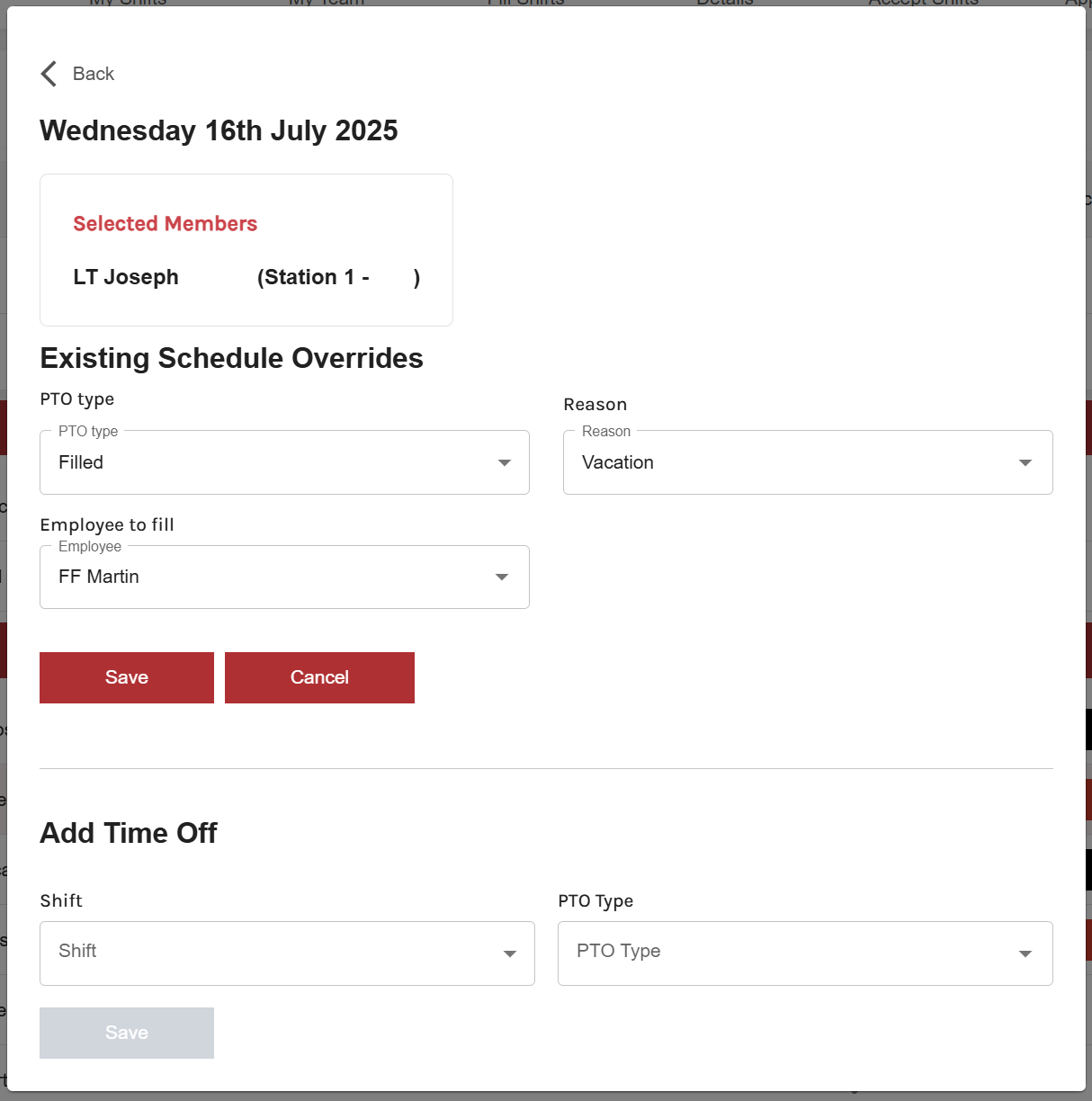
On the edit screen, highlight the member again and click Edit a second time to access time off settings
3. Review PTO Status
-
Review or change the PTO Type if needed
-
Focus on the Status options:
-
Do Not Fill – no coverage needed
-
Filled – already filled
-
Open – shift needs to be filled
-
Requested – awaiting member acceptance
-
Ordered – mandatory assignment
-
4. Assign a Member
-
Select Filled as the PTO Type
-
Choose the member you want to assign to the open shift
-
Click Save
5. Confirm on Schedule
-
Return to the Schedule Page
-
You’ll see the original PTO reason, and the name of the assigned member will appear in green text, indicating they have been manually placed into the shift
Swaps
To manually swap a member on the schedule the PTO Type selection must be set to swap and a member who will be swapped into the position will be manually entered.
Example Use Case
You need to ensure a specific paramedic covers a shift for someone on sick leave. Rather than running an automated fill, you select and place that individual directly using this method.
Tips & Best Practices
-
Only use manual assignment when the replacement is confirmed and approved
-
Use Ordered when assigning a member without their prior consent
-
Always review color indicators to confirm proper scheduling status