.png?width=500&height=97&name=Firehouse247-Horizontal%20Logo@2x%20(2).png)
Overview
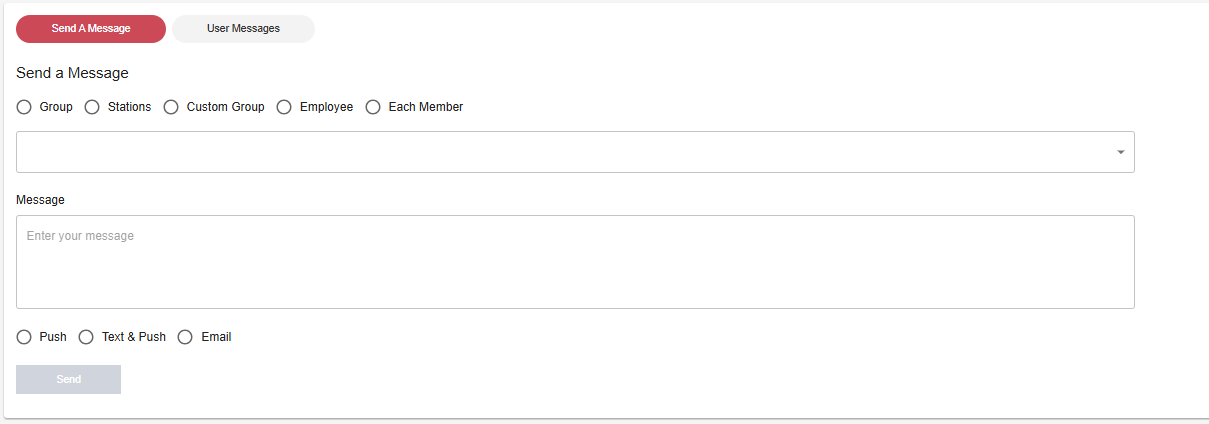
The Messaging page allows authorized members to quickly contact individuals or groups within the department via text, push notification, or email. Whether notifying the whole department or just a few team members, the system makes it easy to broadcast important updates in seconds.
Prerequisites
-
Member must have Messaging authority
-
Ensure recipient contact information (email/phone) is up-to-date in the system
-
Push notifications require members to have the Firehouse247 mobile app installed and enabled
Step-by-Step Instructions
1. Navigate to the Messaging Page
-
Go to Messaging from the main menu
2. Select Recipients
-
Use the selection titles to choose your messaging option
-
To select multiple recipients, click each member you wish to contact
3. Choose Delivery Method
Select how you'd like to send the message:
-
Text
-
Text & Push
-
Email
4. Compose Your Message
-
Write your message in the provided text box
5. Click Send
-
The message will be sent immediately
-
A notification will appear to confirm successful delivery
Tracking Messages
-
All sent messages are logged
-
Visit the View Log page to:
-
Review message content
-
See delivery times
-
Confirm recipient status
-
-
If members are not receiving messages please submit a support ticket through our Helpdesk
Tips & Best Practices
-
Use groups to quickly message all Captains, Admins, or Stations
-
Keep urgent messages short and to the point for better visibility
-
Use Text & Push for time-sensitive communication (e.g. shift openings, recalls)