.png?width=500&height=97&name=Firehouse247-Horizontal%20Logo@2x%20(2).png)
Overview
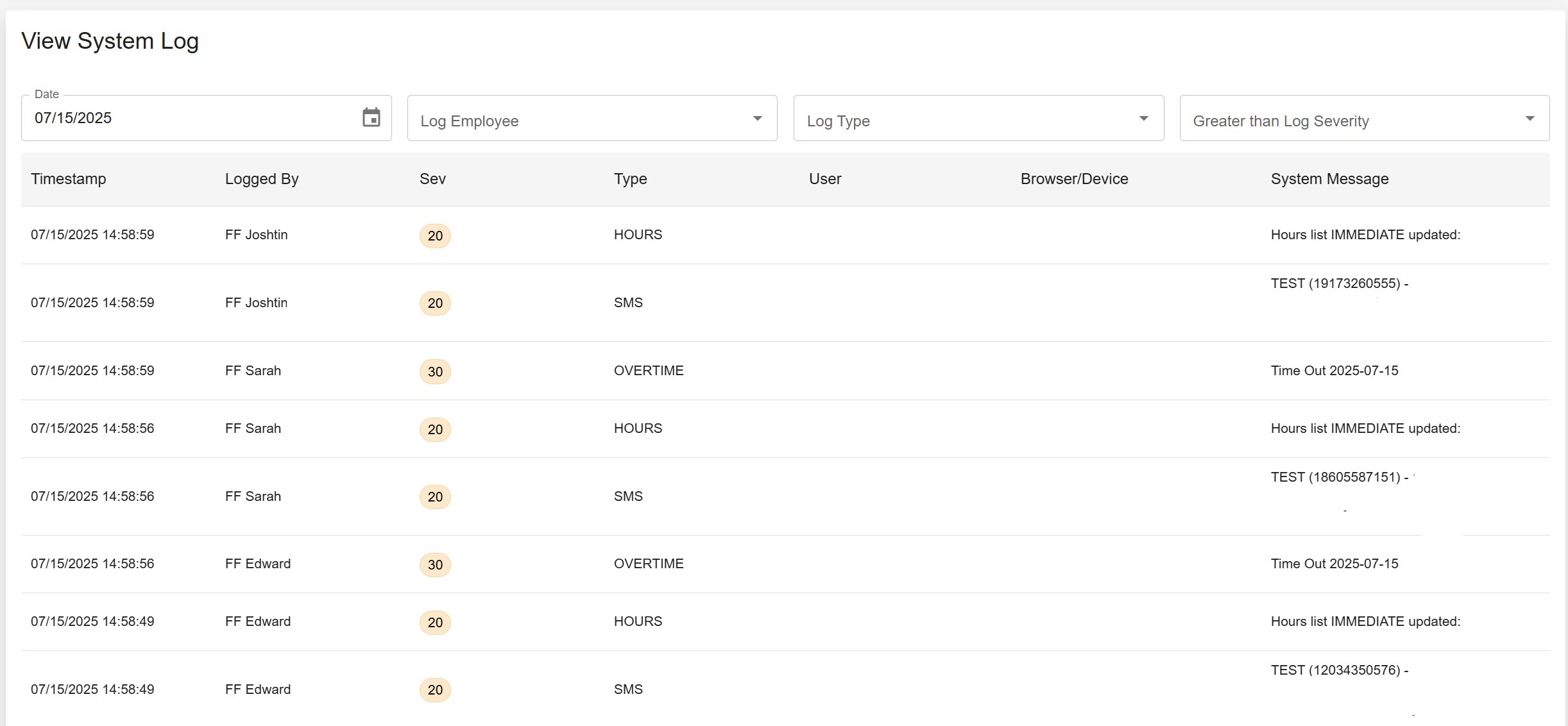
The View Log page is the system’s full audit trail, recording every action performed in Firehouse247. It’s essential for troubleshooting, tracking changes, and understanding who did what, when, and how. If there’s ever a system issue or incorrect action, this is the first place to check.
Prerequisites
-
Must have access to the View Log page (typically Admins and Officers)
-
Familiarity with member roles and common system actions
How to Use the View Log
1. Navigate to the View Log Page
-
Go to System> View Log
2. Understand the Log Fields
Each log entry includes the following information:
| Field | Description |
|---|---|
| Timestamp | The exact date and time the action was performed |
| Logged By | The name of the member who performed the action |
| Function Type | What part of the system was used (e.g. Schedule, Messaging, Detail) |
| User | The member whose profile or schedule was impacted (if applicable) |
| Device | The type of device used (e.g. desktop, mobile) |
| System Message | A detailed description of the action taken or error encountered |
Using the Log for Troubleshooting
-
To investigate issues (e.g. missed calls, shift errors, unauthorized changes), locate the relevant time and action
-
Cross-check the Function Type and System Message for context
-
Look for patterns such as multiple failed attempts or back-to-back errors
Reporting a Bug
If you believe a bug or system malfunction has occurred:
-
Locate the relevant entry in the View Log
-
Take a screenshot or copy the full log details
-
Email the information to:
? help@firehouse247.com
The more detail you provide, the faster our support team can assist you.
Tips & Best Practices
-
Use filters to narrow results by date, user, or function
-
Review the log before escalating support tickets
-
Use as an accountability tool to track scheduling and authority changes