.png?width=500&height=97&name=Firehouse247-Horizontal%20Logo@2x%20(2).png)
Overview
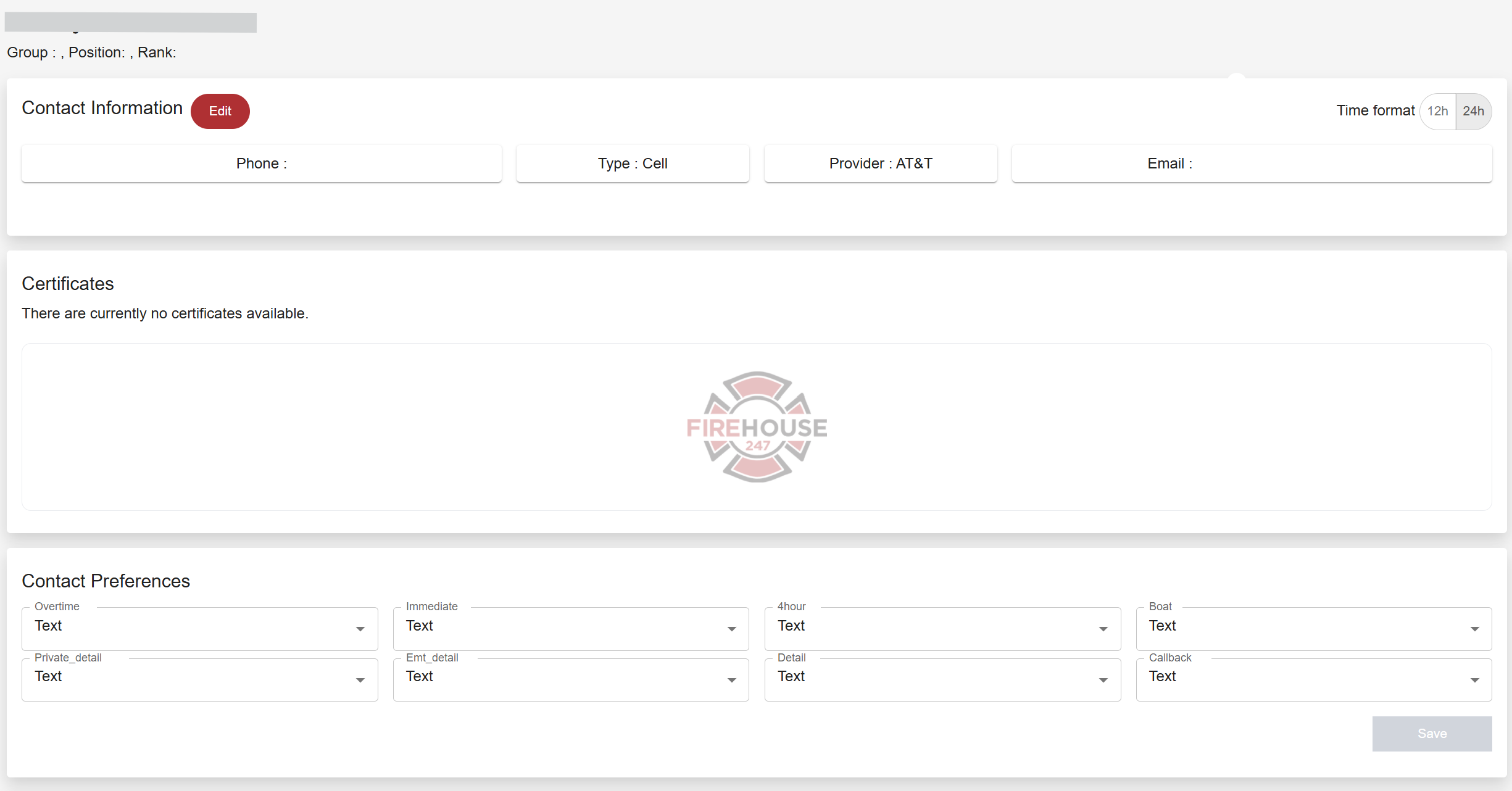
The User Profile page allows each member to manage their own contact details, notification preferences, and view certifications. Keeping this information up-to-date ensures you receive shift notifications the way you want - and that the department can reach you when needed.
Prerequisites
-
Must be logged into your Firehouse247 account
-
Ensure contact methods (email/phone) are current and accessible
-
Mobile app notifications must be enabled if using push alerts
Step-by-Step Instructions
1. Access the User Profile Page
-
Log in to Firehouse247
-
Go to User Settings/Profile from the main menu
2. Update Contact Details
You can edit the following fields:
-
Primary Phone Number
-
Email Address
-
Notification Message Text
This message appears when you receive an overtime shift offer.
Click Save after making changes.
3. View Certifications
-
Any certifications uploaded by administrators will be listed here
-
These may include EMT levels, apparatus qualifications, or department-required credentials
4. Set Contact Preferences
In the Contact Preferences section, configure how you’d like to be notified for each Overtime List:
-
Text Message
-
Email
-
Push Notification
-
Text & Push Notification
-
None (you will not be notified of shifts from this list)
Tips & Best Practices
-
Always keep your phone number and email current to avoid missed shifts
-
Review your contact preferences regularly—especially if your availability changes
-
If you’re not receiving notifications, double-check that “None” isn’t selected